Getting Started in Coding with Python for Beginners (Part 3)
This part covers basic syntaxes in the Python programming language using Jupyter Notebook. However, you can also use another Integrated Development Environment (IDE), such as Pycharm, VS Code, Idle, or any other IDE. The syntaxes are still the same no matter what IDE you are using. If you are looking to install Python or navigate Jupyter Notebook, you should check my previous articles here and here.
Basically, all programming languages can be divided into sequential, branching, and looping. We will discuss the basic syntaxes in Python from there.
Sequential
Sequential programming is when our code consists of operations one over the other, which will be run in a sequence, just like counting from 1 to 10. Sequential is the basic logic on how computers run our instructions. Computers always execute our code in order, unless you tell them otherwise, from the very top to the very bottom.
For example, let’s make our previous “hello world” code to take the user’s name and greet the user. The idea is our code consists of a set of instructions that have to be done in a sequence. First, the computer welcomes “hello world!”, takes the user’s input, and finally greets the user along with the input.
On your computer, launch Jupyter and create a new python file. If you don’t know how, please go back to part 1 or part 2.
In the new file, click on the cell and type “print(‘Hello world!’)” and then In the new file, click on the cell and type “print(‘Hello world!’)” and then press return or enter to make a new line right below it.
Take users ‘ input in the new line and store it in the “ name “ variable. To do so, type “name = input(‘What is your name? ‘)”. Input() is the syntax that we use to get user input. After executing, you should get the following:

The blue box next to “What is your name?” is where we can type our name as the input for the code. You can put your name there, but nothing will happen since we haven’t told our code what to do with the input “name”.
Now, move to the next cell. We will make a code to greet the user using the user’s input, which we call variable “name”. This variable naming enables us to call the variable by stating “name”. Therefore, we can type “print(‘Hello’, name)”, and Python should greet you using the name in the “name” variable. Remember! You should start from the first cell if you want to execute the cell! Thus, you have to run the first cell first, fill in your input, press enter or return, then run the second cell.


Branching
Branching is an instruction that can cause the computer to begin executing a different instruction sequence and thus deviate from its default behavior of executing instructions in order. Let’s use the famous eggs and milk programmer joke for branching. The joke is as follows:
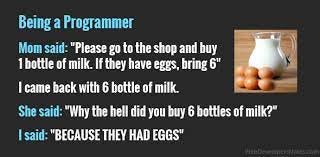
“Mom” told “she” to buy a bottle of milk. However, mom told her to buy six if the store had eggs. In real life, we could guess logically that “Mom” wanted “She” to buy six eggs, not six bottles of milk. However, this is not how a computer thinks. For a computer, the instruction is clear: she had to buy six bottles of milk if the “eggs condition” was met. We will turn the joke into a code using this computer’s logic. I have prepared a diagram for this, which will help us understand the logic of our code.
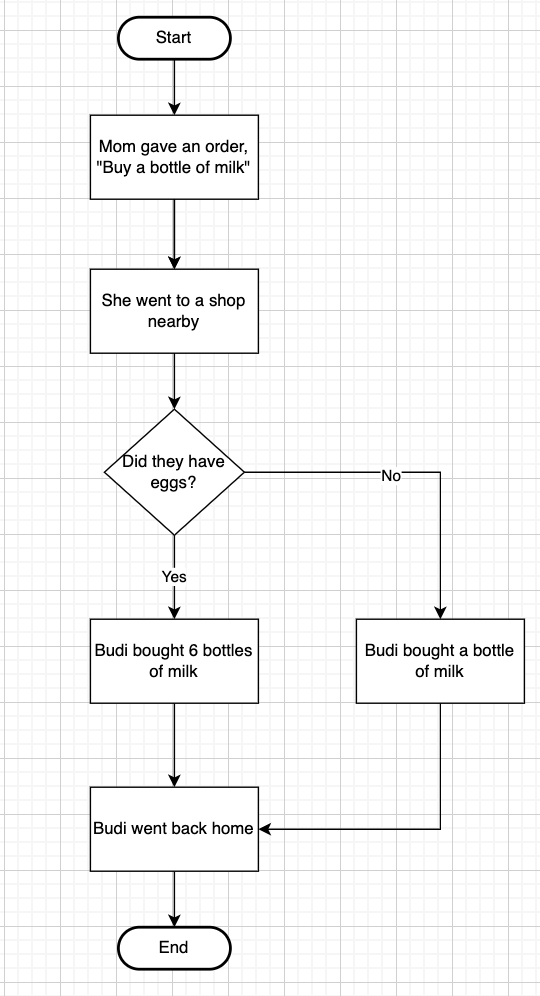
First of all, we set up the parameters on a new python file. From the diagram, we can assume that the only parameter we need is eggs availability. Therefore, let’s make “eggs” variable and assign it to zero (0). Type “eggs = 0”.
Next, print Mom’s command, “Buy a bottle of milk. If they have eggs, buy 6”.
Then, we need to set up a branch where the computer will execute the alternative instruction if the eggs availability condition is fulfilled. We use the “if” statement to make this expression. Type “if eggs > 0:” then press enter or return. Jupyter will automatically adjust the indentation of the next line. This adjustment means that the computer will only run whatever instruction or statement in this part when the eggs are more than 0. Type “print(‘Charlotte bought 6 bottles of milk’)” (let’s call the smart girl Charlotte) as our statement for the “if” condition.
After we set the statement when the availability of eggs is met, we also need to create the alternative for the unmeet condition. To do so, we use “else”. Make a new line, and erase the indentation. Type “else:”, then enter or return. Again, you will be in a new indented line. Create the “else” statement by typing “print(‘Charlotte bought 1bottles of milk’). This means that if eggs were not equal to zero, Charlotte would buy one bottle of milk. Execute the code, and you should get “Charlotte bought 1 bottle of milk”.

Next, you can play with the eggs variable by your own. For example, assume that the shop had eggs by changing the “eggs” value to 100. Execute the code from the beginning one more time. Python should return “Charlotte bought 1 bottle of milk”.
Branching with more than 1 alternatives
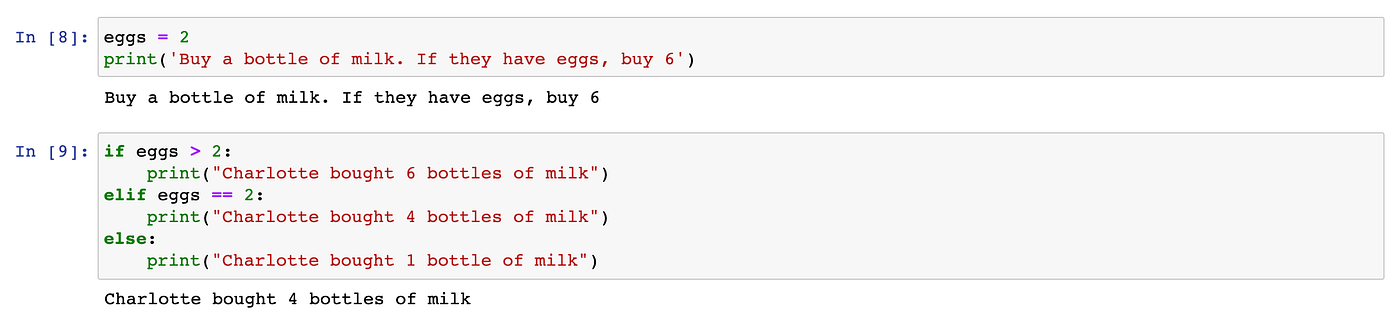
What if there were more than one condition? For example, if the shop had two eggs, Charlotte bought four bottles of milk, and if the shop had more than two eggs, Charlotte bought six bottles of milk. For that, we could use “elif”.
First, modify the “if” statement into “eggs >2:”. Then, under the first statement, start a new line without indentation and type “elif eggs == 2:”. We use “==” to express the mathematical expression of “equal” . Next, in the new indented line below it, type “Charlotte bought 4 bottles of milk” as the statement. Execute the code. Then, change the eggs variable to 2 (two), and execute the code one more time. You should see the output changes as the parameter changes.
Looping
A loop is a code that will repeat over and over again. There are two types of loops, “for loop” and “while loop”. For loop will repeat a certain number of times, and while loop will keep repeating until a condition is met.
For Loop
The basic structure of a for loops in Python is for variable in iterable followed by a block that is executing multiple times with the variable that can own the values provided by the iterable. Iterable is like a box that keeps providing new values to be executed until it runs out. Iterable can be a list or a dictionary, but we are not going to cover that yet. Another type of iterable is range, which provides integer value from start to stop, excluding the stop. For example, we want to count from 0 to 10. We can just type print(‘0’), follower by print(‘1’), up to print(‘10’). Doing so is easy if we only need to count zero to ten, but what if we want to count until a hundred? This is where for loops comes in handy.
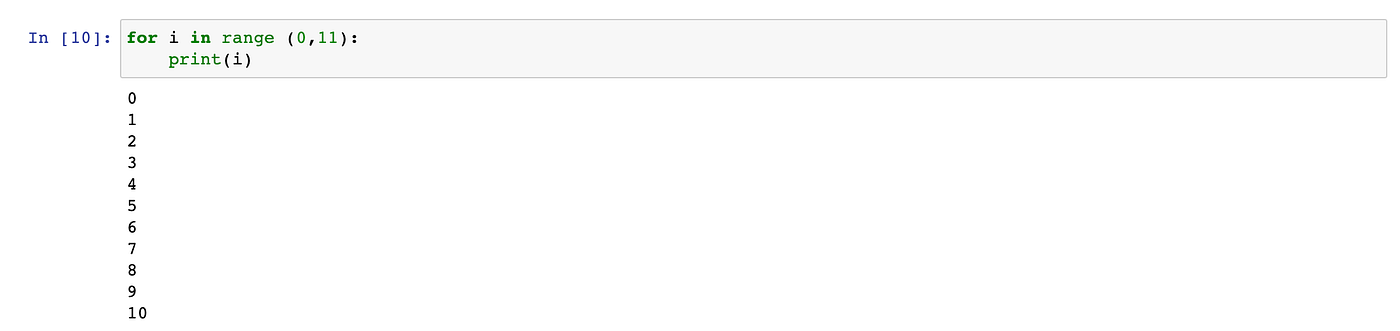
Let’s try this counting using for loops. To start, type “for” followed by the name of the variable, let’s call it “i”. Continue with “in range([start], [stop], [step]):”. Let’s say we want to count from 0 to 10, thus we need to type “for i in range(0,11):”. Why we stop at 11? Because it is exclusive, so we always want to stop at stop + 1. In the indented line, type “print(i)”.
Range also have interesting features. We can omit the start value, and it will assume that the start value is zero.
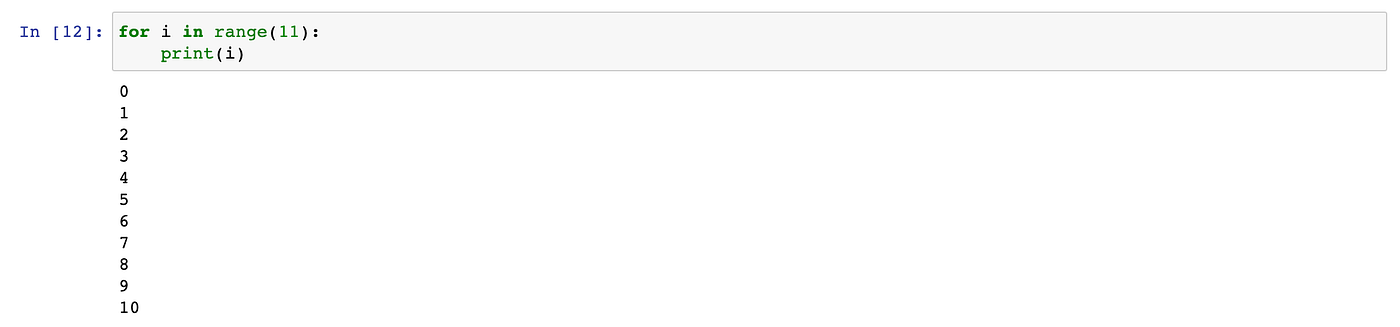
We can also provide a third argument, which will become the value of the skip count. For example, we want to skip count from zero to ten by two. Note that you have to provide the first argument in this case.

We can combine for with other syntaxes as the statement. For example, I want to multiply each variable i by two. This would be:

While Loop
Unlike for loop, while loop does not have a specific value for a start and stop. Instead, it needs a specific condition to be met for the loop to stop. If the condition is never met, the loop will never stop.
For example, let’s say we have ten new books. Our task is to read all the books. For this case, we create variable “books” and assign it to 10 (ten). We also need to make the variable “books_read” to represent the number of books read. Assuming we did not read a single book yet, we assign this variable to 0 (zero).
Next, start the loop by typing “while books_read < books:” then press enter or return. In the next indented line, type “books_read = books_read + 1”. This statement expresses that we have done reading one book, so we need to add the count of books read by one.
Move to the next indented line by pressing enter or return, then type “print(‘Done reading book ‘, books_read)” to track which book has been read.
Then, make a new line (press enter or return) and erase the indentation. Type “print(‘I have finished reading all books’)”. Typing in a new unindented line means that the computer will run the instruction after finishing the loop.
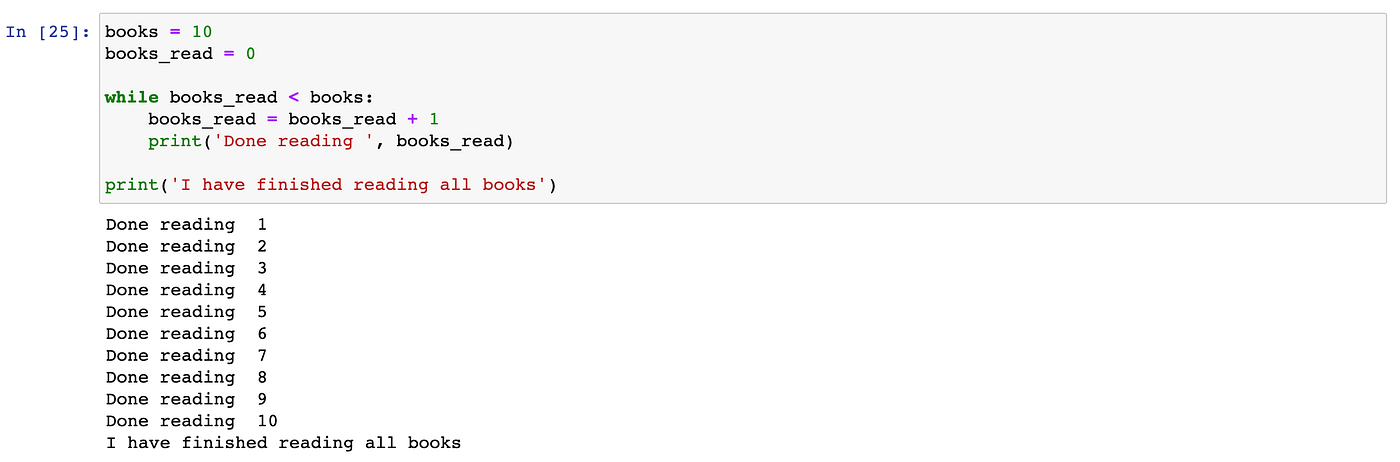
In the end, variable “books_read” should have a value of 10, or equal to “books”. To check this, type “books_read”.

Well done! I know all of this looks like a mess, especially if you’ve just learned coding. However, do not be discouraged, keep learning, and I am sure you are at the start of your road to mastery. I suggest you explore other Python syntaxes on this page here and have fun! Thank you for staying this far, and I wish you all the best!


Comments
Post a Comment